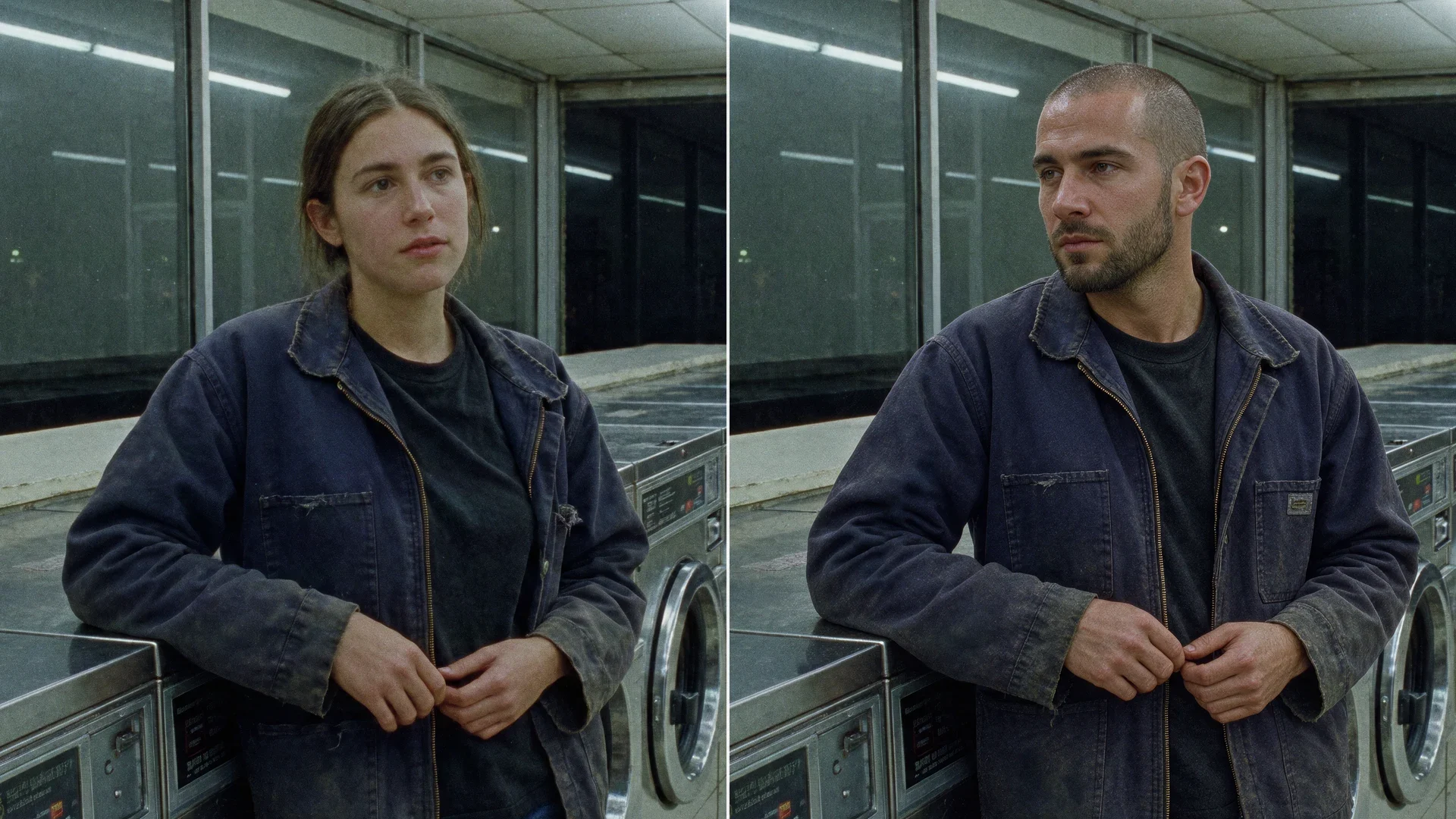
A Krea részletes útmutatót adott ki a Video Swap funkció használatáról, amellyel egy meglévő videóban cserélhetők ki a szereplők vagy a környezeti elemek. Az eszköz a forrásvideó mozgását, a kameramozgást, a vágásokat és az eredeti hangot is érintetlenül hagyja, miközben a megadott fotó alapján az egész karaktert, a frizurát és a ruházatot is beleértve, újrarajzolja a képkockákon.
A művelethez egy videót és 1-4 referenciafotót kell feltölteni, az összevetést pedig az eszköz automatikusan elvégzi, de tetszőleges prompt segítségével manuálisan is felülbírálható. A funkció használatához fizetős Krea-előfizetés szükséges, az elkészült videók felbontása pedig a választott modelltől függően akár 1080p is lehet.
A funkció nemcsak a webes felületen érhető el, hanem a Krea API végpontjain és az MCP-szerverén keresztül is meghívható. Utóbbi segítségével például Claude-ból vagy Cursorból közvetlenül, természetes nyelven kiadott utasításokkal is elindítható a videók tartalmának cseréje.
Az eredeti szöveg (Krea)
To face swap a video with AI, you give a tool the clip you want to keep and a photo of the person you want in it. The tool redraws that person into every frame and leaves the rest alone: the movement, the camera, the cuts and the sound. On Krea that tool is Video Swap. You upload one video, add one to four reference images, and generate.
This guide walks through a full swap in Krea Video Swap, then covers what makes a clean result, how to swap a whole character instead of only a face, how to handle several people, how developers run the same swap through the API and MCP, and the consent rules that apply to all of it.
Before you start: Video Swap runs on a paid Krea plan. You can open it and look around without one, but you need to sign in and have a plan to generate. See Krea pricing for the plans.
Video Swap is built to keep the source clip’s performance and replace what is in it. Krea describes it as replacing people, outfits, objects or the setting in a video while keeping its motion, timing, camera and sound. The original audio is laid back onto the result, so dialogue and music stay as they were.
The part that matters for a face swap: Video Swap swaps the whole person shown in your reference, not only the face. If your reference photo shows a woman with short red hair in a denim jacket, the result is that woman, hair and jacket included, moving the way the original person moved. That is usually what people mean by “put me in this video”. If you only want to change a face and keep everything else, read Swap a whole character, an outfit, or just a face below.
You also do not have to tell the tool what each reference replaces. Krea plans that step for you: it looks at frames from the source and at your references, and works out which person (or object, outfit or background) each image should replace. A prompt only overrides that plan when you want a specific mapping.
Go to krea.ai/apps/video-face-swap and open the tool, or go straight to Krea Video with Video Swap selected. Video Swap is the first mode in Krea Video’s mode menu.
No clip of your own yet? The Explore grid in Video Swap has example swaps you can open and recreate with your own references. It is a quick way to learn what kind of footage works before you shoot anything.
The source is the clip you want to keep: the movement, the framing, the camera, the sound. In the panel it is labeled Video to edit, with the hint “Upload a video to swap things in it.”
Length limits depend on the model you pick in step 5:
If your clip is longer than the selected model takes, Krea opens a trim dialog so you can keep the part you need. Only the trimmed part is swapped, and only that part is priced. Switching to a model with a shorter limit marks the video “Too long” until you trim it.
References are the photos of what you want to see in the video. The panel labels them References, with the hint “These will replace their closest match in your video.” You can add up to four.
For a face swap, the reference is a photo of the person who should appear. Use a sharp, well-lit image where the face is clearly visible. A head-and-shoulders shot works, and a full-body photo also tells the tool how the person is dressed. Each reference is treated as a complete description of the new person, so whatever the photo shows (hair, glasses, jacket) can come through in the result.
Only upload a photo of someone who agreed to it. More on that in Use video face swap responsibly.
The prompt field is labeled Prompt (optional). Your inputs appear as pills you can mention: the video is @vid-1 and the references are @img-1 to @img-4. The placeholder shows the kind of prompt that helps:
Most single-person swaps need no prompt at all. Add one when the clip has several people and you care who becomes whom, or when the tool’s automatic choice picked the wrong person on a first run.
If one model gets a clip wrong, the same clip on another model is a reasonable second attempt.
Pick the quality (480